
When HubSpot announced Fall 2026 at UNBOUND, the keynote ran through Breeze Assistant’s new capabilities, the self-updating CRM, Marketing Studio, and Agent Hub. Context Home got mentioned briefly, positioned as a supporting feature rather than a headline.
That framing undersells it significantly.
Context Home is the mechanism that feeds business knowledge into every AI feature in HubSpot. Get it right and Breeze Assistant drafts content that actually sounds like your company. Get it wrong — or skip it entirely — and you’ll get outputs that are fluent and generic, the kind of AI content that sounds like it could have been written for anyone.
Here’s what Context Home is, why it matters more than the keynote implied, and exactly how to set it up.
What Context Home Does
Context Home is a dashboard inside Agent Hub where you manage the business context that HubSpot’s AI draws from when generating content, making suggestions, or running agents.
Before Context Home existed, HubSpot’s AI features worked from two sources of information: your CRM data (contacts, companies, deals, campaigns) and general training data. That combination produced AI outputs that were factually grounded in your pipeline but often tonally and positionally generic.
Context Home adds a third layer: explicit, human-written context about your business. You can define your brand voice, describe your products in your own words, explain your target customer, outline your competitive positioning, and document anything else the AI should know before it starts generating outputs.
The difference in AI output quality between a portal with Context Home properly configured and a portal where it’s been ignored is noticeable. This isn’t theoretical — HubSpot has published data showing customers using AI with high-quality context book 5.8 times more meetings on average on average. The mechanism behind that number is largely Context Home.
Where to Find It
Context Home lives inside Agent Hub. Navigate to your HubSpot portal, click on the AI or Agents section in your main navigation (the exact placement depends on your portal configuration), and look for Agent Hub. Inside Agent Hub, you’ll see a Context tab at the top.
If you’re on Professional or Enterprise, Agent Hub is included in your subscription and doesn’t require a separate purchase. If you can’t find it, check with your Super Admin — it needs to be enabled in AI Settings before it shows up.
What You Can Define in Context Home
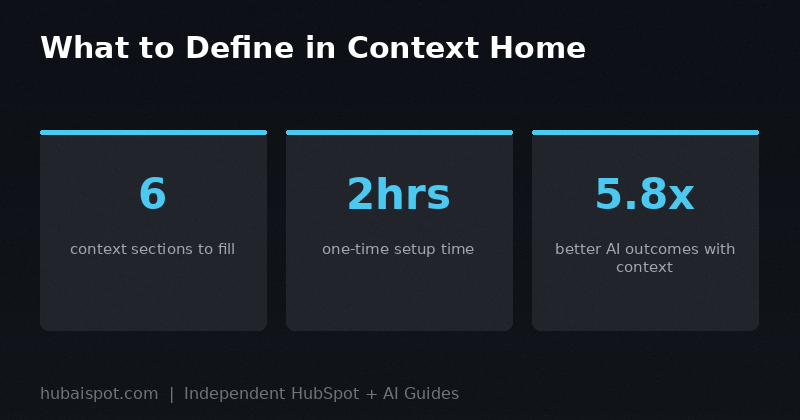
Context Home breaks into several categories of business context. Here’s what each one does and what to put in it.
Company Profile
This is foundational. The Company Profile section is where you describe what your company does, who it serves, and how it’s positioned in the market.
Don’t write this like a website About page. Write it like a briefing document for someone who needs to represent your company accurately in an external conversation. What industry are you in? What’s your core product or service? What problem does it solve? What makes your approach different from competitors?
Keep it factual and specific. “We help B2B SaaS companies reduce churn through better customer onboarding” is more useful to the AI than “We’re a dynamic company with innovative solutions.” Vague language goes in, vague language comes out.
Brand Voice
This section shapes the tone and style of everything Breeze generates. If you have a brand style guide, this is where you translate its key points into plain instructions.
Useful things to include:
– Tone descriptors (direct, conversational, technical vs. accessible, etc.)
– Things to avoid (jargon, corporate filler phrases, overly formal constructions)
– Example sentences that represent your ideal voice
– Whether you use contractions or prefer formal constructions
If you’ve ever had a piece of AI-generated content that was technically correct but felt like it came from a different company, the brand voice section is what would have fixed it.
Products and Services
Define your individual products or services with enough detail that the AI can write about them accurately. For each product, include:
- The product name exactly as you want it used
- What it does in one or two sentences
- Who it’s for (the specific role or company type, not generic descriptions)
- Key differentiators or proof points
This section is particularly important for teams using Content Agent. When Content Agent drafts a blog post or email about your product, it pulls from this section for product-specific details. If this section is empty or vague, the output will be generic.
Ideal Customer Profile
The ICP section defines who your target buyer is. This feeds into prospecting suggestions, buyer segment creation, and email personalization.
Include company characteristics (size, industry, stage), buyer role information (title, seniority, typical responsibilities), and if possible, the problems they’re usually trying to solve when they find you.
The more specific this is, the more useful Breeze’s suggestions become when you’re asking it to help with prospecting or audience segmentation. A specific ICP definition (“VP of Marketing at B2B SaaS companies between 50 and 500 employees, usually struggling to attribute pipeline to specific content investments”) produces better targeting suggestions than “marketing leaders at mid-market companies.”
Competitive Context
This section is optional but high-value. You can describe your main competitors and how you’re positioned against them.
This matters because Breeze can use competitive context when drafting comparison content, sales enablement materials, or messaging that addresses common objections. If you’re frequently competing against two or three specific tools, naming them here and explaining your differentiation gives the AI better material to work with.
Market and Industry Context
Describe the market you operate in and any industry-specific terminology or context the AI should understand. This is particularly useful for companies in specialized verticals where general AI training data may not have strong domain knowledge.
How to Set It Up: A Step-by-Step Process
Step 1: Gather your source materials first. Before going into Context Home, pull together your existing brand and positioning documents: your website’s about page, any brand guidelines you have, your sales deck’s positioning slides, and any documented ICP or persona work. You’re not going to copy-paste these directly, but having them open makes the Context Home setup go faster and more accurately.
Step 2: Write the Company Profile. Navigate to Agent Hub > Context and find the Company Profile section. Write a 150 to 250 word description of your company. Focus on what you do, who you do it for, and your core value proposition. Avoid adjectives that sound like marketing copy (“industry-leading,” “cutting-edge”). Stick to factual, specific language.
Step 3: Define your brand voice. In the Brand Voice section, write 3 to 5 sentences describing how your company sounds. Follow each descriptor with a brief example. “We’re direct and confident — we say ‘This will help you close more deals’ rather than ‘This solution may potentially drive improvements in your sales outcomes.’”
If you have specific things your brand avoids — em dashes, certain phrases, overly formal constructions — list them explicitly.
Step 4: Add your products one at a time. For each product or service, fill in the product fields with the information outlined above. Don’t rush this section. The product definitions in Context Home directly affect the accuracy of AI-generated content about your products.
Step 5: Write your ICP definition. Keep this concrete. Use actual job titles, actual company sizes, actual industries. If you have multiple ICPs for different products or segments, you can add multiple persona definitions.
Step 6: Test the outputs. After completing Context Home, open a new Breeze Assistant conversation and ask it to draft a short product description or a prospecting email for your ICP. Compare what it produces against your baseline (either what your team writes manually or what Breeze produced before you set up Context Home). The output should be noticeably more specific and accurate.
If it’s not, go back into Context Home and add more specificity. Common issues: brand voice is too vague, product descriptions are too generic, or the ICP definition doesn’t include enough concrete characteristics.
Common Mistakes
Leaving sections blank. Every blank section in Context Home is a gap that Breeze fills with inference from your CRM data or general training patterns. The more context you provide, the better the outputs.
Writing marketing copy instead of operational context. Context Home isn’t a place for your tagline. It’s a place for the information someone would need to speak accurately on behalf of your company. Write for someone who’s never heard of you but needs to represent you correctly.
Setting it once and forgetting it. Context Home should be updated when your positioning changes, when you launch new products, or when you find that AI outputs are consistently reflecting outdated information. It’s not a one-time setup task — it’s more like a living document that stays current with your business.
Ignoring it because Breeze “seems fine.” The Breeze Assistant works without Context Home configured. It just works worse. The gap is most visible in the specificity of outputs: without Context Home, Breeze produces content that’s structurally solid but tonally generic. If your team’s standard for AI content is “good enough,” you might not notice. If the standard is “sounds like us,” you will.
How Context Home Connects to the Rest of Fall 2026
Context Home was designed to be the foundation layer for everything else in the Fall 2026 release. The self-updating CRM feeds contact and deal data into the AI. Context Home feeds business and brand knowledge. Together, they give Breeze the information it needs to produce outputs that are accurate about your pipeline and specific to your company.
If you’re setting up Breeze Assistant or Marketing Studio, configure Context Home first. The investment is maybe two hours for a thorough setup, and it improves the output quality of every AI feature in the platform.
For the Breeze Assistant setup process in more detail, the complete Breeze AI review covers what to expect after you’ve got Context Home in place. If you’re using Breeze for marketing automation specifically, the HubSpot automation workflows guide gives context on how agents and automations work alongside each other.
One Practical Test Before You Go Live
Before you roll out the new AI features to your team, run this test:
Open Breeze Assistant. Ask it: “Write a three-sentence description of what we do and who we serve.”
If the answer is accurate and specific, your Context Home setup is working. If it’s generic or wrong, go back and add more specificity to your Company Profile and ICP sections.
This takes two minutes and tells you immediately whether the foundation you’ve set up will produce good outputs at scale. It’s worth doing before your marketing team starts using Content Agent for anything that matters.
HubAISpot covers independent, practical guides on HubSpot and AI for marketers and sales teams. No vendor relationships. No paid placements.
Leave a Reply